Create your own code structure
Define which Application Identifiers a barcode must contain — barValid checks every scan against it automatically.
Anyone who has run a project with barcoded goods and several suppliers knows the problem: the position and size of the barcode are usually fine — but the content varies. One supplier includes the batch, the next one does not; another adds fields your line cannot process.
With your own code structure you define once what a barcode has to look like at your site. From then on barValid validates every scan against it — at goods-in just as much as at the supplier, before the goods are even shipped.
What you need
- The barValid app on your phone
- Knowing what your barcodes have to contain (e.g. GTIN, batch, best-before date)
Step by step
-
Open the structure editor
Tap Structure editor in the menu. You land in the Code structures list, which is empty the first time. -
Create a new structure
Tap the + at the bottom right. Give the structure a name you will recognise later — for example “Goods-in supplier Miller” or “GTIN + batch + expiry”. Confirm with Create. -
Add a description
The Description field lets you note in one sentence what the structure is for. That helps when several colleagues share a device. -
Add the first AI rule
Tap the + at the bottom right again. The search across all Application Identifiers opens. Search by number or name — for the article number, for instance 01 (GTIN) — and select the entry. It then appears under AI rules.Not sure which AI number means what? Look them all up in the GS1 AI database — here on the website and in the app under “GS1 AI database”.
-
Decide how strict the rule is
Tap the new rule. You can set:- Mandatory — the default: this AI must be in the barcode. If it is missing, the code is not acceptable.
- Forbidden — this AI must not appear. Handy when suppliers add data that gets in your way.
- Alternative group — give several AIs the same group number and one of them is enough.
-
Add the remaining fields
Repeat this for every field the barcode must carry. For a typical food label that would be 01 (GTIN), 10 (batch) and 17 (best-before date). -
Activate the structure for scanning
Go back to the scanner. Above the camera image you see the name of the active structure — “No structure” while none is selected. Tap it and pick the one you just created. -
Scan and read the result
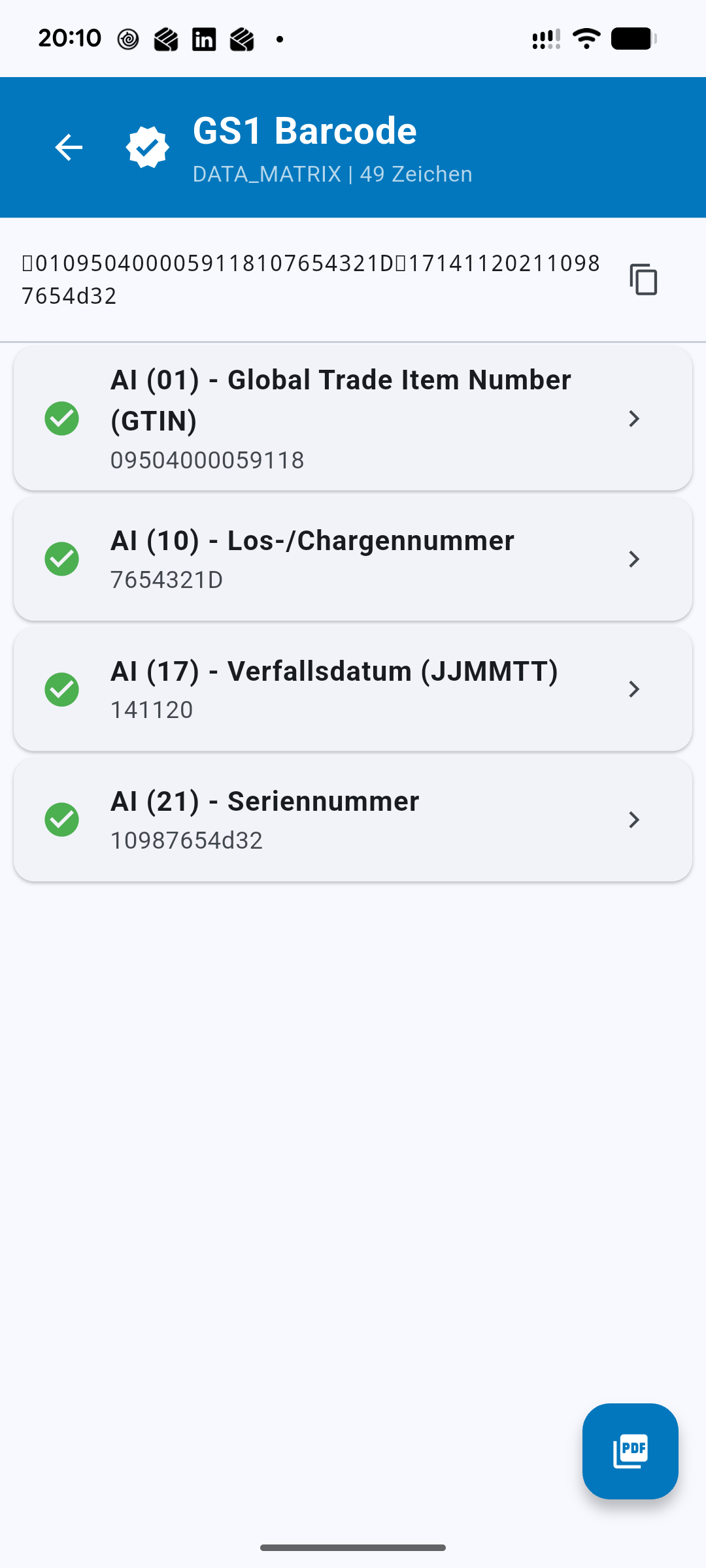
Scan a barcode. The result now carries “Structure: your name” underneath. If a mandatory AI is missing or a forbidden one is present, barValid reports the code as invalid and shows you exactly where it goes wrong.Validating against your own structure
Done — that’s all there is to it.
An example from practice
A goods-in structure for food products could look like this:
- 01 (GTIN) — mandatory. Without the article number the goods cannot be matched.
- 10 (batch) — mandatory, needed for traceability.
- 17 (best-before date) — mandatory.
- 21 (serial number) — forbidden, because it has no place in your system.
When a pallet arrives whose label forgot the best-before date, the person at goods-in sees it on the first scan — instead of accounting finding out three weeks later.